> For the complete documentation index, see [llms.txt](https://docs.flowiseai.com/llms.txt). Markdown versions of documentation pages are available by appending `.md` to page URLs; this page is available as [Markdown](https://docs.flowiseai.com/integrations/langchain/tools/google-sheets.md).
# Google Sheets
## Create credential in Flowise
1. Add a new Google Sheets OAuth2 credential
2. Enter a name for the credential.
3. Copy the OAuth Redirect URL.
4. Note that the following fields need to be filled in:
* Client ID
* Client Secret
## Create/Use Google Project
1. Log in to your [**Google Cloud**](https://console.cloud.google.com/) account.
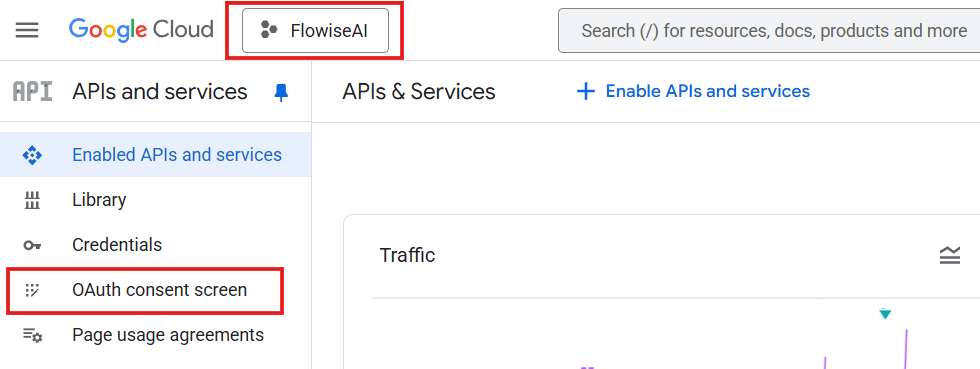
2. Navigate to [**Google Cloud Console > APIs & Services**](https://console.cloud.google.com/apis/credentials), and select the project you want to use from the dropdown at the top left (or create a new project and select it).
3. Set up the **OAuth consent screen** if you haven't configured one before.
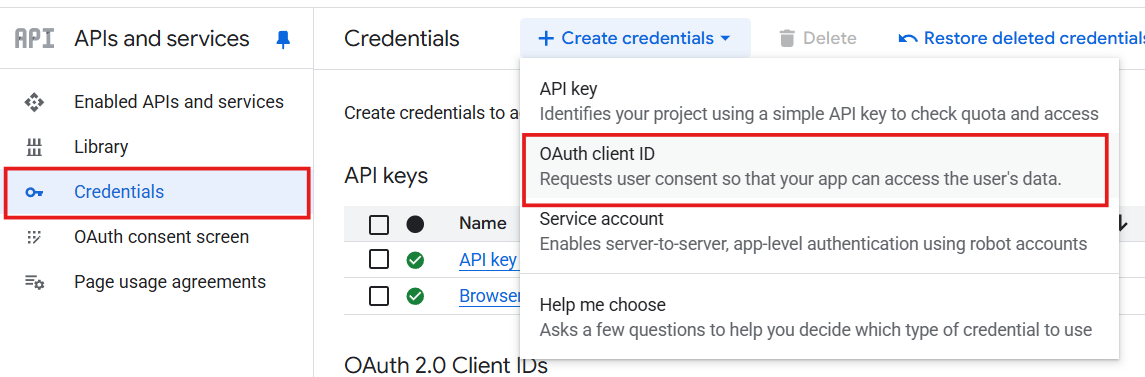
4. Go to **Credentials**, then click **+ CREATE CREDENTIALS > OAuth client ID**.
5. In the **Application type** dropdown, select **Web application**.
6. Under **Authorized redirect URIs**, click **+ ADD URI** and paste the OAuth redirect URL copied earlier.
7. Click **Create**.
8. Copy the Client ID and Client Secret:
9. In **Enabled APIs & Services**, click **+ ENABLE APIS AND SERVICES**.
10. Search for and enable the **Google Sheets API**.
11. Return to **Credentials**, click the newly created credential under **OAuth 2.0 Client IDs**, and on the detail page, you’ll find the **Client ID** and **Client Secret**.
## Finish setup in Flowise
1. Fill in all the values copied earlier. Then click "**Authenticate**":
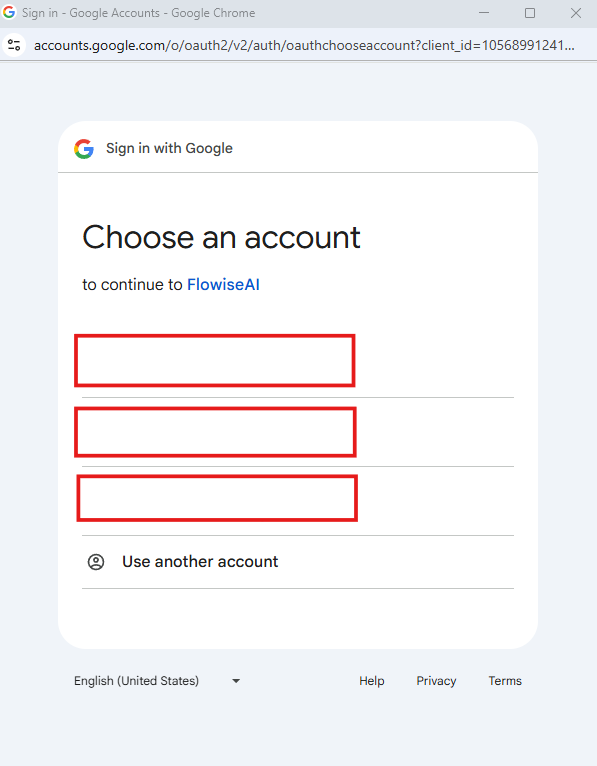
2. A Google login window will pop up:
3. Grant the permissions:
4. Pop up window will be closed automatically and credential will be saved and ready to be used.
## Use as Agent Tool
Multiple actions can be selected to let the Agent intelligently choose the appropriate one.\
Parameters can be left empty to allow the Agent to determine the values on its own. However, if the user provides values, those will override the Agent's choices.
## Use as Tool Node
It can also be used as a Tool Node in a determined workflow scenario. For example, get a specific spreadsheet before proceeding to the next step.\
In this mode, **Tool Input Arguments must be explicitly defined and filled with values**.\
Unlike the [**Use as Agent Tool**](#use-as-agent-tool) option, there is no Agent to automatically determine the inputs. The user must manually populate the fields, either by entering fixed values or using variables enclosed in double curly brackets `{{ }}`.