> For the complete documentation index, see [llms.txt](https://docs.flowiseai.com/llms.txt). Markdown versions of documentation pages are available by appending `.md` to page URLs; this page is available as [Markdown](https://docs.flowiseai.com/integrations/3rd-party-platform-integration/zapier-zaps.md).

# Zapier Zaps

Learn how to integrate Flowise and Zapier

***

## Prerequisite

1. [Log in](https://zapier.com/app/login) or [sign up](https://zapier.com/sign-up) to Zapier
2. Refer [deployment](/configuration/deployment.md) to create a cloud hosted version of Flowise.

## Setup

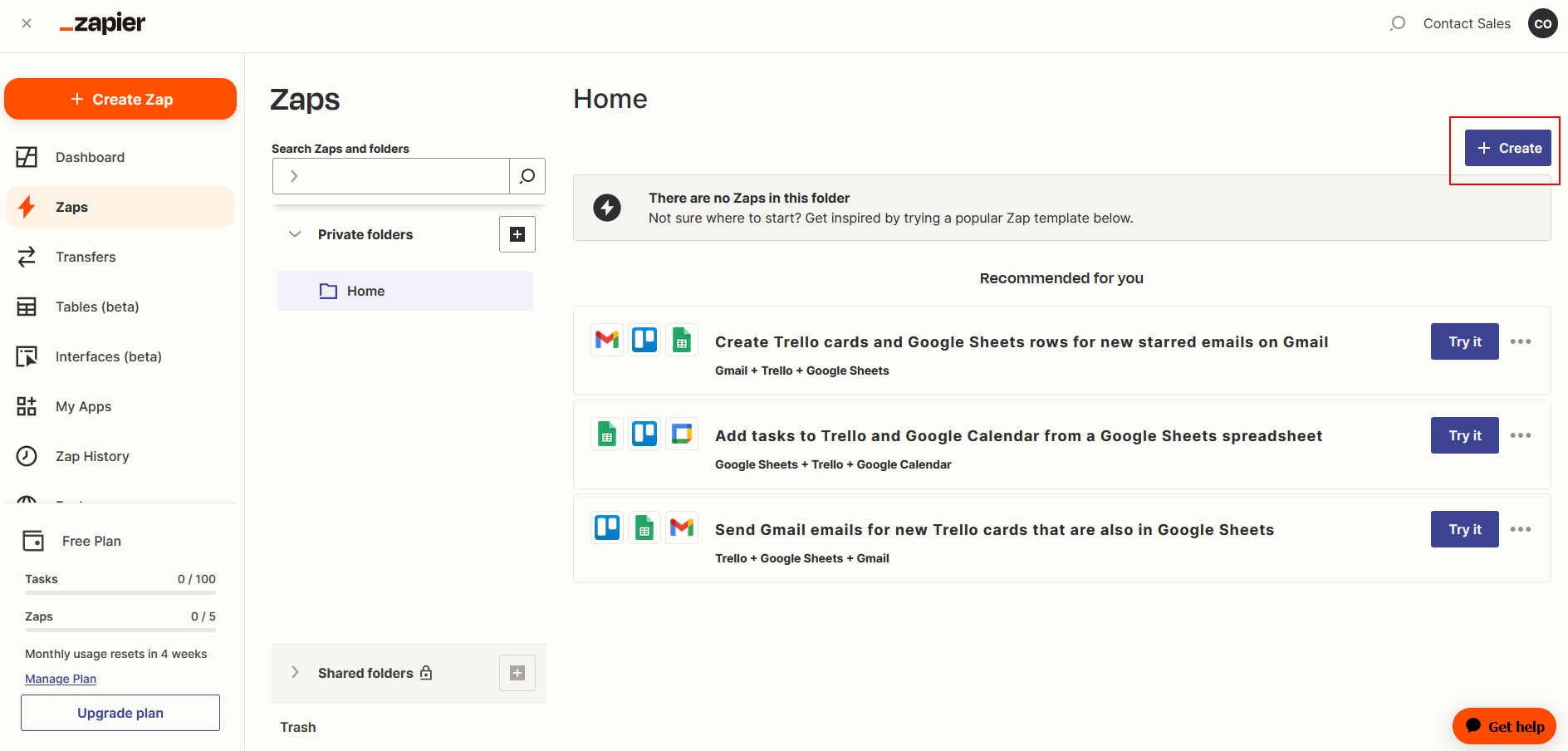
1. Go to [Zapier Zaps](https://zapier.com/app/zaps)
2. Click **Create**

<figure><img src="https://823733684-files.gitbook.io/~/files/v0/b/gitbook-x-prod.appspot.com/o/spaces%2F00tYLwhz5RyR7fJEhrWy%2Fuploads%2Fgit-blob-cdd1e6a9900a8c785b0a2fb4724945883885931e%2F1.png?alt=media" alt=""><figcaption></figcaption></figure>

### Receive Trigger Message

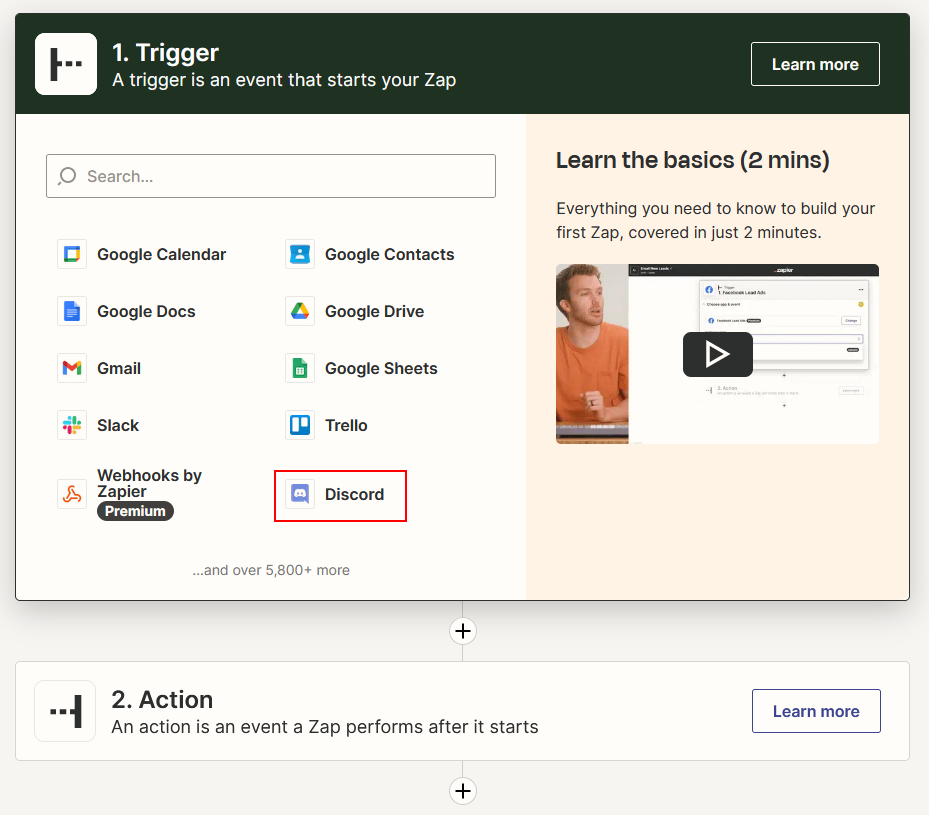
1. Click or Search for **Discord**

   <figure><img src="https://823733684-files.gitbook.io/~/files/v0/b/gitbook-x-prod.appspot.com/o/spaces%2F00tYLwhz5RyR7fJEhrWy%2Fuploads%2Fgit-blob-69b4362198696cdf87b51cc3fceebfdefa60e7b6%2F2.png?alt=media" alt="" width="563"><figcaption></figcaption></figure>
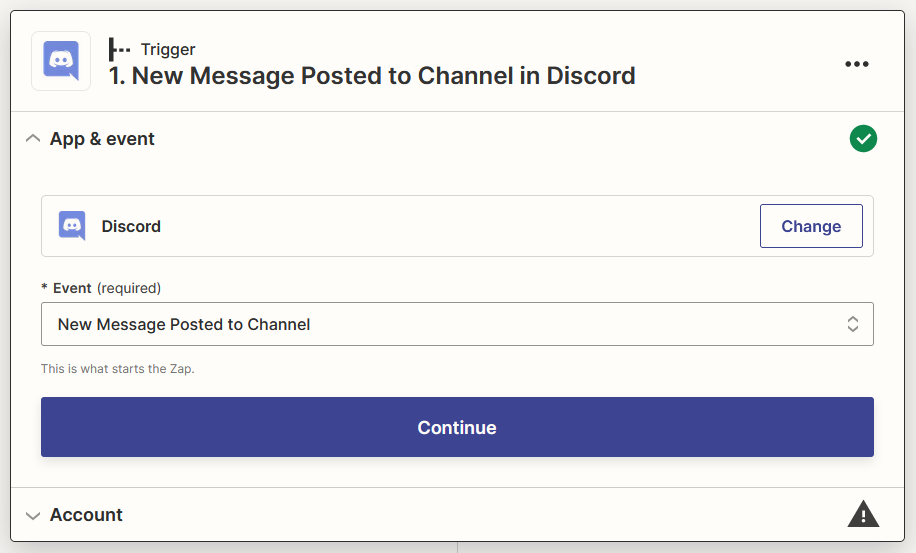
2. Select **New Message Posted to Channel** as Event then click **Continue**

   <figure><img src="https://823733684-files.gitbook.io/~/files/v0/b/gitbook-x-prod.appspot.com/o/spaces%2F00tYLwhz5RyR7fJEhrWy%2Fuploads%2Fgit-blob-46eb81b840873714aa069f7c25cb357a2e99871f%2F3.png?alt=media" alt="" width="563"><figcaption></figcaption></figure>
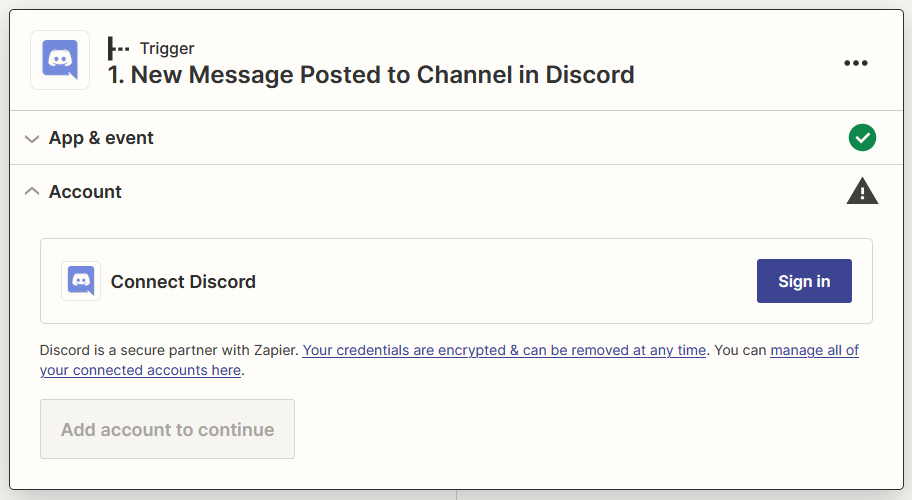
3. **Sign in** your Discord account

   <figure><img src="https://823733684-files.gitbook.io/~/files/v0/b/gitbook-x-prod.appspot.com/o/spaces%2F00tYLwhz5RyR7fJEhrWy%2Fuploads%2Fgit-blob-6ba39b850d50ddf386de313f236a9bcca6e53de7%2F4.png?alt=media" alt="" width="563"><figcaption></figcaption></figure>
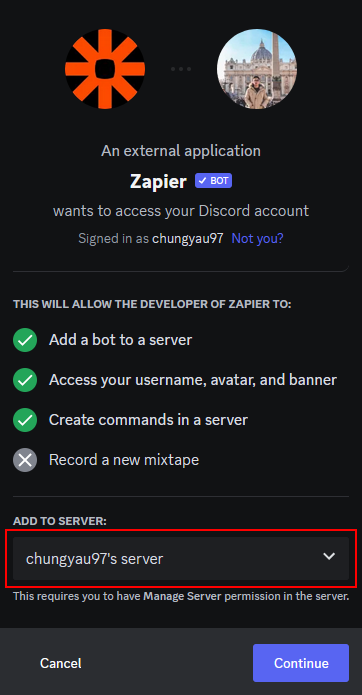
4. Add **Zapier Bot** to your prefered server

   <figure><img src="https://823733684-files.gitbook.io/~/files/v0/b/gitbook-x-prod.appspot.com/o/spaces%2F00tYLwhz5RyR7fJEhrWy%2Fuploads%2Fgit-blob-804367def0ecce328a3a374cde77814e215125eb%2F5.png?alt=media" alt="" width="272"><figcaption></figcaption></figure>
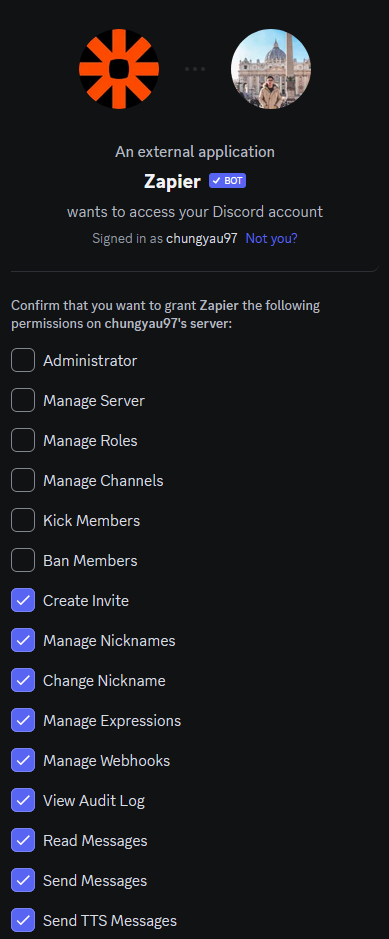
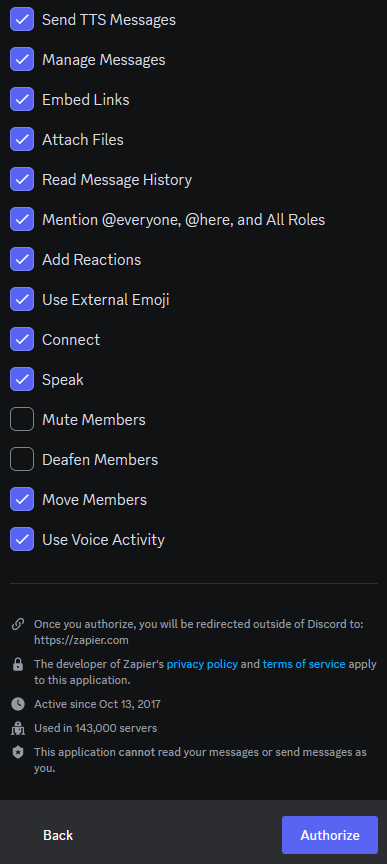
5. Give appropriate permissions and click **Authorize** then click **Continue**

   <figure><img src="https://823733684-files.gitbook.io/~/files/v0/b/gitbook-x-prod.appspot.com/o/spaces%2F00tYLwhz5RyR7fJEhrWy%2Fuploads%2Fgit-blob-d42ddeaca3ee35815c3a96b0fe10608c91b85bf3%2F6.png?alt=media" alt="" width="292"><figcaption></figcaption></figure>

   <figure><img src="https://823733684-files.gitbook.io/~/files/v0/b/gitbook-x-prod.appspot.com/o/spaces%2F00tYLwhz5RyR7fJEhrWy%2Fuploads%2Fgit-blob-ce2ca2e8f688b3de18499fe085d1d1120ffc7ab7%2F7.png?alt=media" alt="" width="290"><figcaption></figcaption></figure>
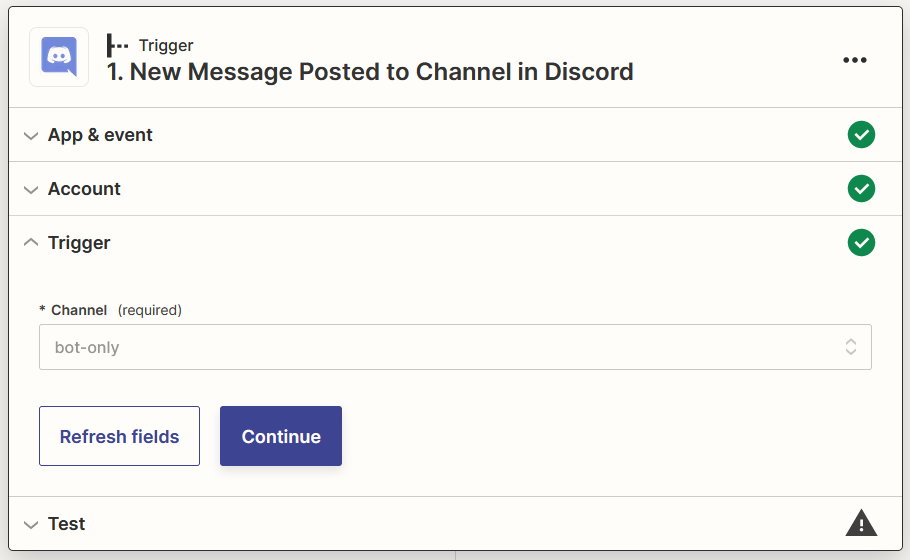
6. Select your **prefered channel** to interact with Zapier Bot then click **Continue**

   <figure><img src="https://823733684-files.gitbook.io/~/files/v0/b/gitbook-x-prod.appspot.com/o/spaces%2F00tYLwhz5RyR7fJEhrWy%2Fuploads%2Fgit-blob-851e4f5f7a3060bc90671734d0081ac380fa926f%2F8.png?alt=media" alt="" width="563"><figcaption></figcaption></figure>
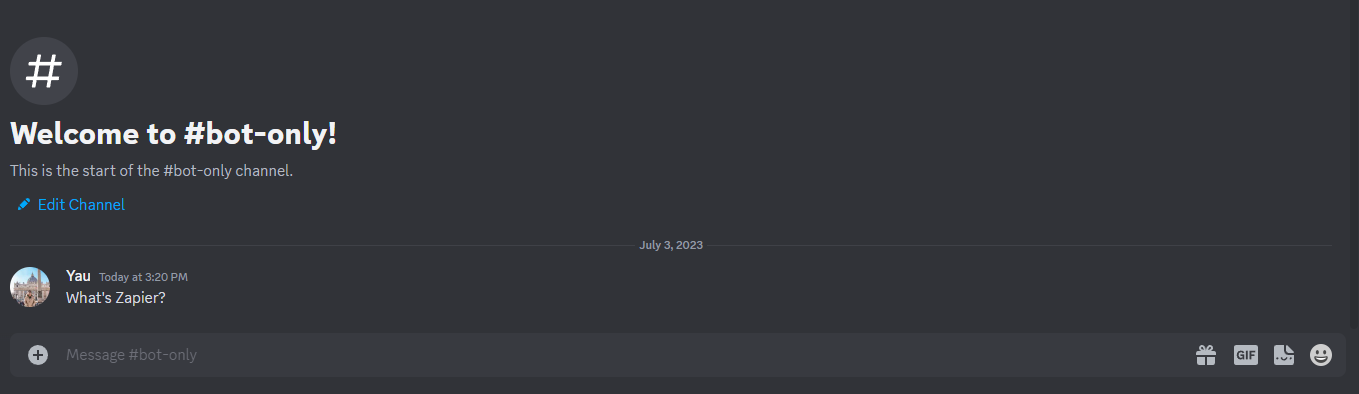
7. **Send a message** to your selected channel on step 8

   <figure><img src="https://823733684-files.gitbook.io/~/files/v0/b/gitbook-x-prod.appspot.com/o/spaces%2F00tYLwhz5RyR7fJEhrWy%2Fuploads%2Fgit-blob-fcaa125abf955376d3e38bf64e74b7054238984a%2F9.png?alt=media" alt="" width="563"><figcaption></figcaption></figure>
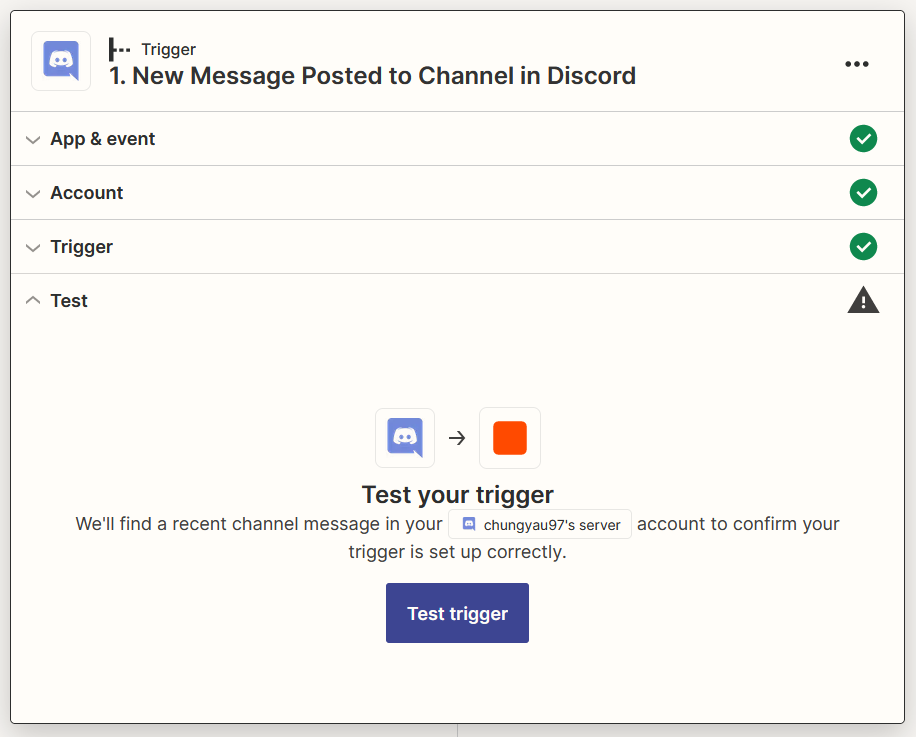
8. Click **Test trigger**

   <figure><img src="https://823733684-files.gitbook.io/~/files/v0/b/gitbook-x-prod.appspot.com/o/spaces%2F00tYLwhz5RyR7fJEhrWy%2Fuploads%2Fgit-blob-770ce515be4cb6522797d2314b0356aca5d7e4a0%2F10.png?alt=media" alt="" width="563"><figcaption></figcaption></figure>
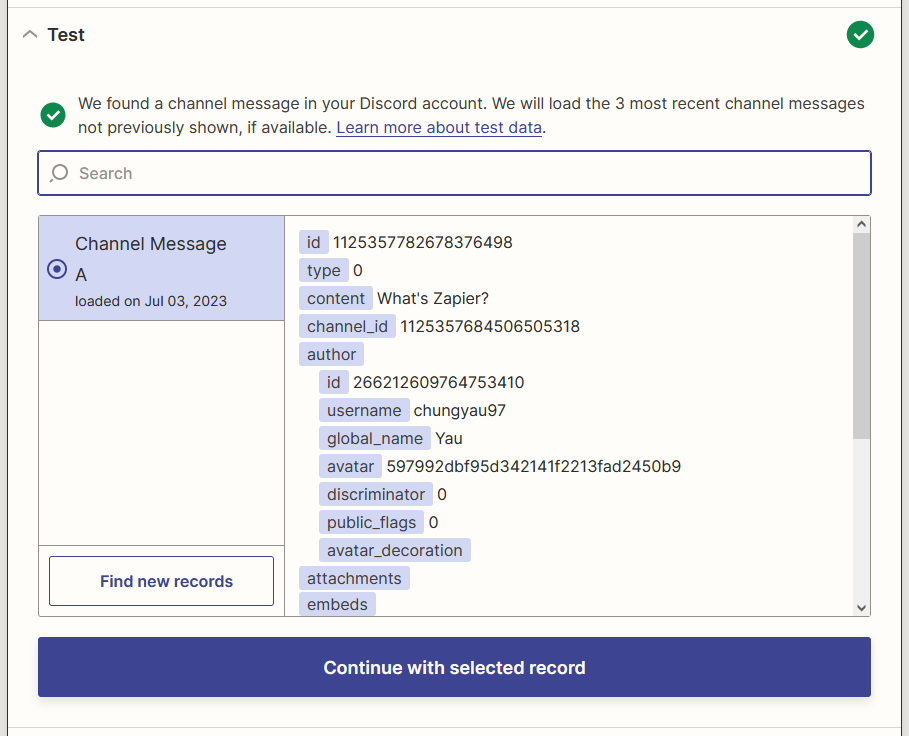
9. Select your message then click **Continue with the selected record**

   <figure><img src="https://823733684-files.gitbook.io/~/files/v0/b/gitbook-x-prod.appspot.com/o/spaces%2F00tYLwhz5RyR7fJEhrWy%2Fuploads%2Fgit-blob-0e1f5d3b20a55fa8f16a1938bebf599a85850bdb%2F11.png?alt=media" alt="" width="563"><figcaption></figcaption></figure>

### Filter out Zapier Bot's Message

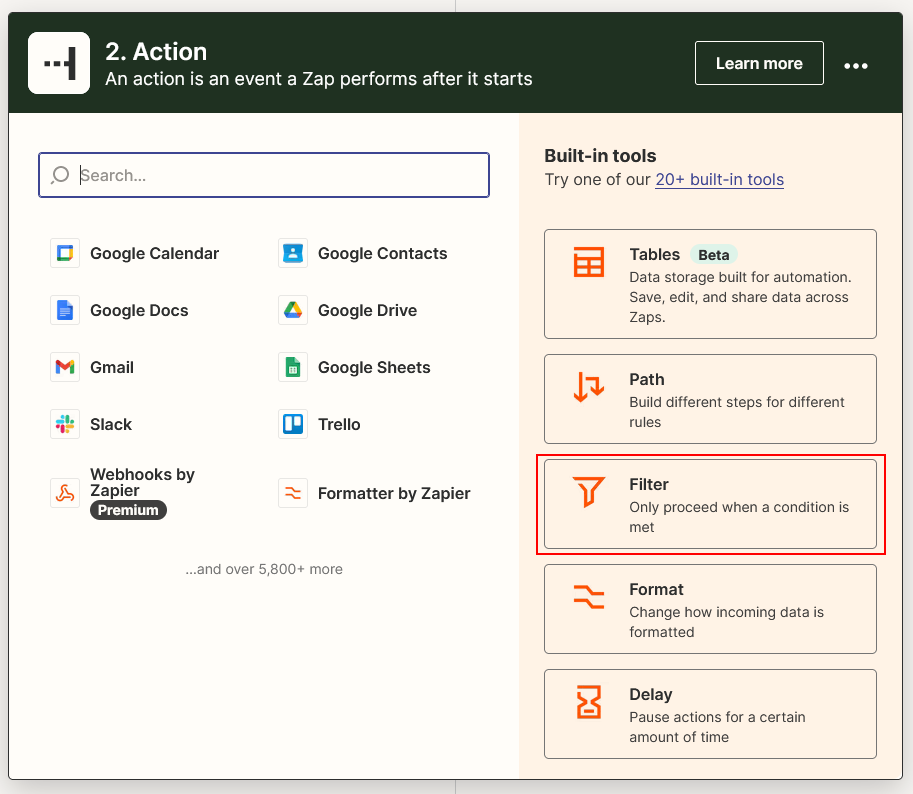
1. Click or search for **Filter**

   <figure><img src="https://823733684-files.gitbook.io/~/files/v0/b/gitbook-x-prod.appspot.com/o/spaces%2F00tYLwhz5RyR7fJEhrWy%2Fuploads%2Fgit-blob-667c65becbe515f3b0a968e808f1026c6b40b1ec%2F12.png?alt=media" alt="" width="563"><figcaption></figcaption></figure>
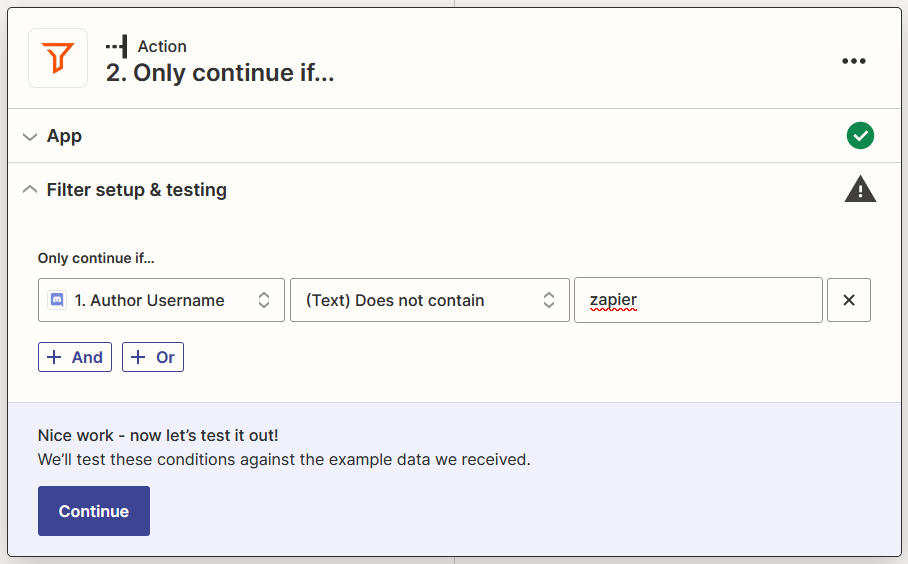
2. Configure **Filter** to not continue if received message from **Zapier Bot** then click **Continue**

   <figure><img src="https://823733684-files.gitbook.io/~/files/v0/b/gitbook-x-prod.appspot.com/o/spaces%2F00tYLwhz5RyR7fJEhrWy%2Fuploads%2Fgit-blob-8aee1edb317dc3fd15c9adc927a4c4a7c870073b%2F13.png?alt=media" alt="" width="563"><figcaption></figcaption></figure>

### FlowiseAI generate Result Message

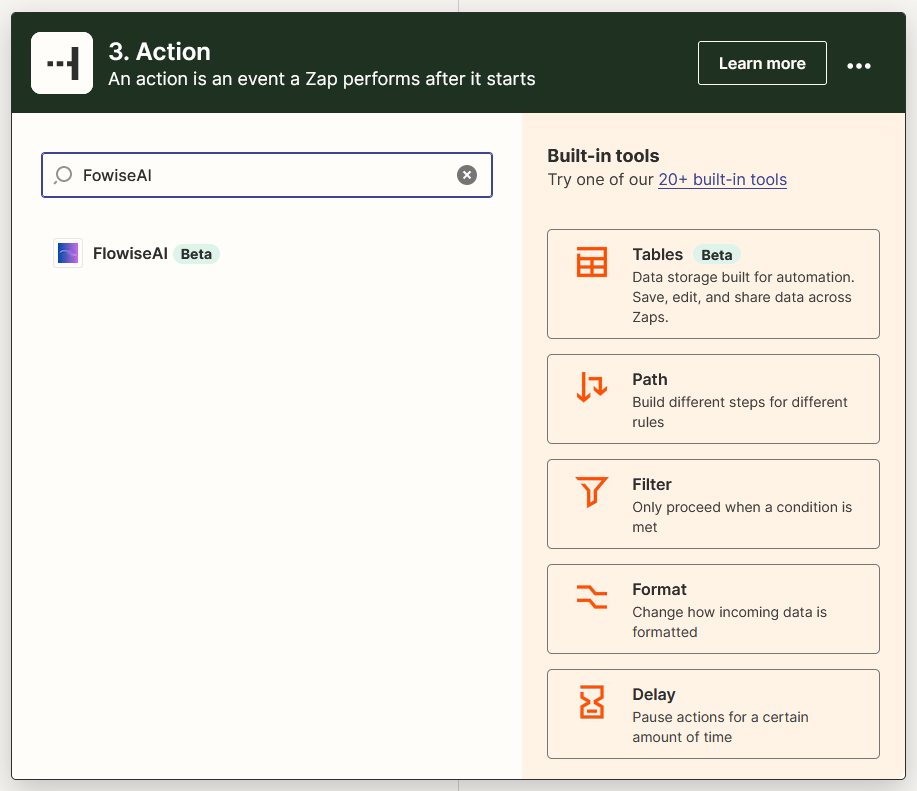
1. Click **+**, click or search for **FlowiseAI**

   <figure><img src="https://823733684-files.gitbook.io/~/files/v0/b/gitbook-x-prod.appspot.com/o/spaces%2F00tYLwhz5RyR7fJEhrWy%2Fuploads%2Fgit-blob-4bef9d6da228e50bc4c176afc7a74a9108b819ee%2F14.png?alt=media" alt="" width="563"><figcaption></figcaption></figure>
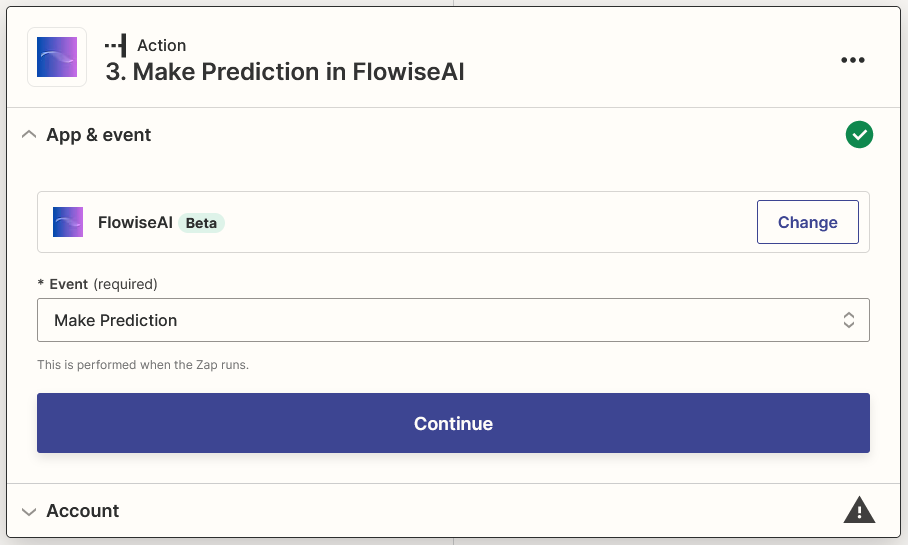
2. Select **Make Prediction** as Event, then click **Continue**

   <figure><img src="https://823733684-files.gitbook.io/~/files/v0/b/gitbook-x-prod.appspot.com/o/spaces%2F00tYLwhz5RyR7fJEhrWy%2Fuploads%2Fgit-blob-bd07b8612e6e10b24b76d59806cc7a16641cb25a%2F15.png?alt=media" alt="" width="563"><figcaption></figcaption></figure>
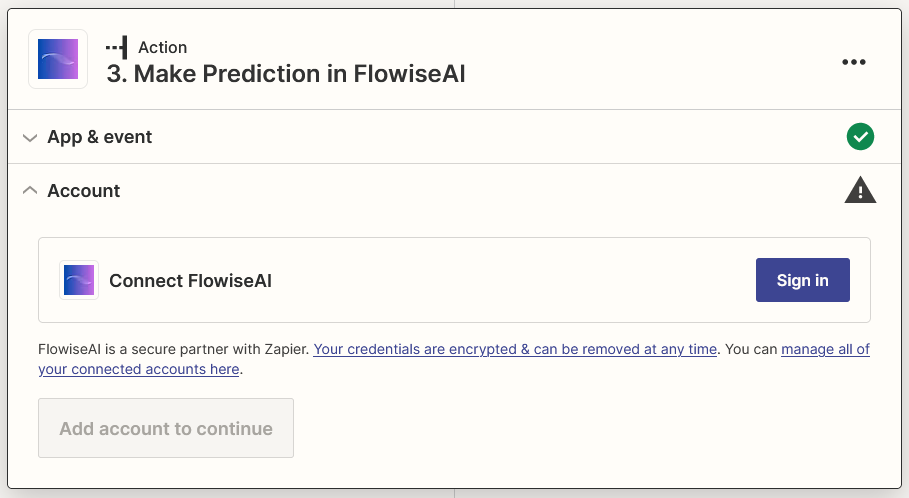
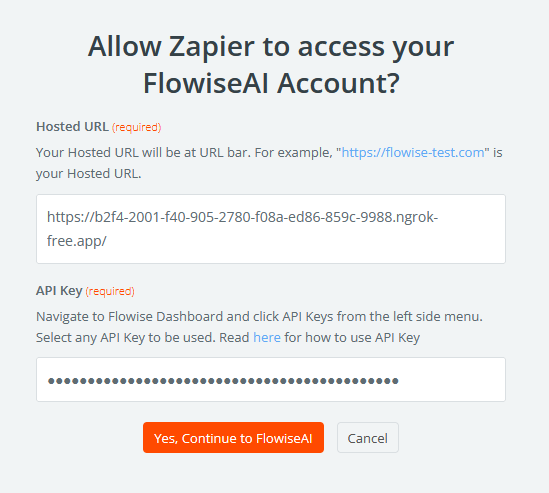
3. Click **Sign in** and insert your details, then click **Yes, Continue to FlowiseAI**

   <figure><img src="https://823733684-files.gitbook.io/~/files/v0/b/gitbook-x-prod.appspot.com/o/spaces%2F00tYLwhz5RyR7fJEhrWy%2Fuploads%2Fgit-blob-87e1c4019a47d2063e0f1f74257adcf8cdfa852b%2F16.png?alt=media" alt="" width="563"><figcaption></figcaption></figure>

   <figure><img src="https://823733684-files.gitbook.io/~/files/v0/b/gitbook-x-prod.appspot.com/o/spaces%2F00tYLwhz5RyR7fJEhrWy%2Fuploads%2Fgit-blob-20fd2efffc8df3cfef571281e6e74c04eec0e001%2F17.png?alt=media" alt="" width="563"><figcaption></figcaption></figure>
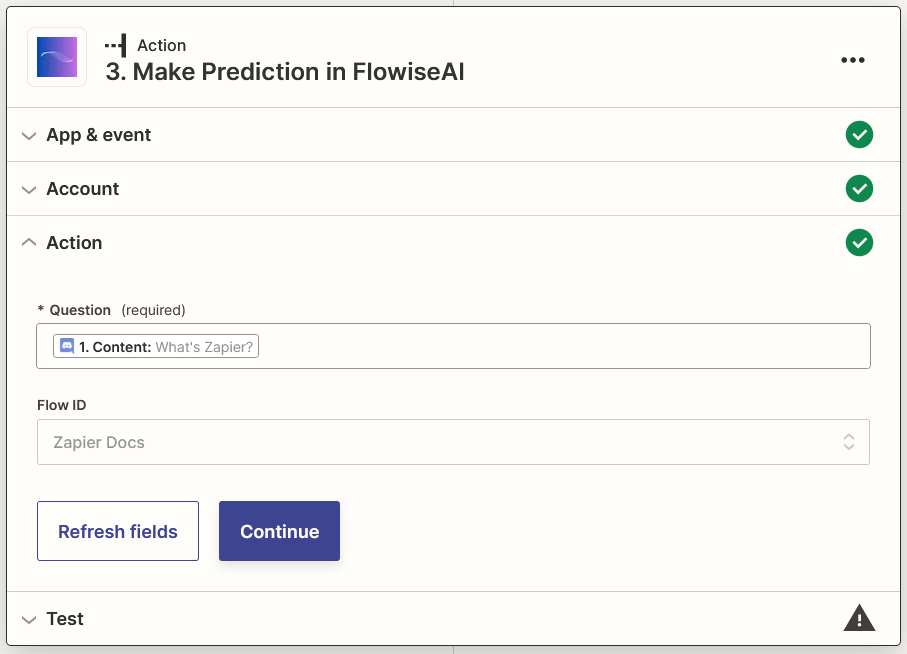
4. Select **Content** from Discord and your Flow ID, then click **Continue**

   <figure><img src="https://823733684-files.gitbook.io/~/files/v0/b/gitbook-x-prod.appspot.com/o/spaces%2F00tYLwhz5RyR7fJEhrWy%2Fuploads%2Fgit-blob-652ec4cd6405dfdfb17edcb00eae96cacae13e74%2F18.png?alt=media" alt="" width="563"><figcaption></figcaption></figure>
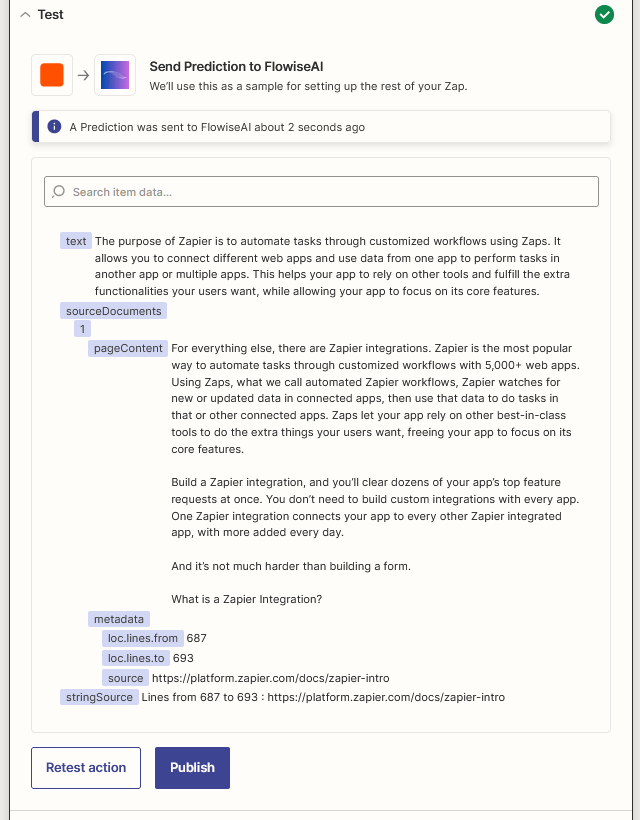
5. Click **Test action** and wait for your result

   <figure><img src="https://823733684-files.gitbook.io/~/files/v0/b/gitbook-x-prod.appspot.com/o/spaces%2F00tYLwhz5RyR7fJEhrWy%2Fuploads%2Fgit-blob-5d0e5ebfdad1295978016ad5ff4aa1802163d1c7%2F19.png?alt=media" alt="" width="563"><figcaption></figcaption></figure>

### Send Result Message

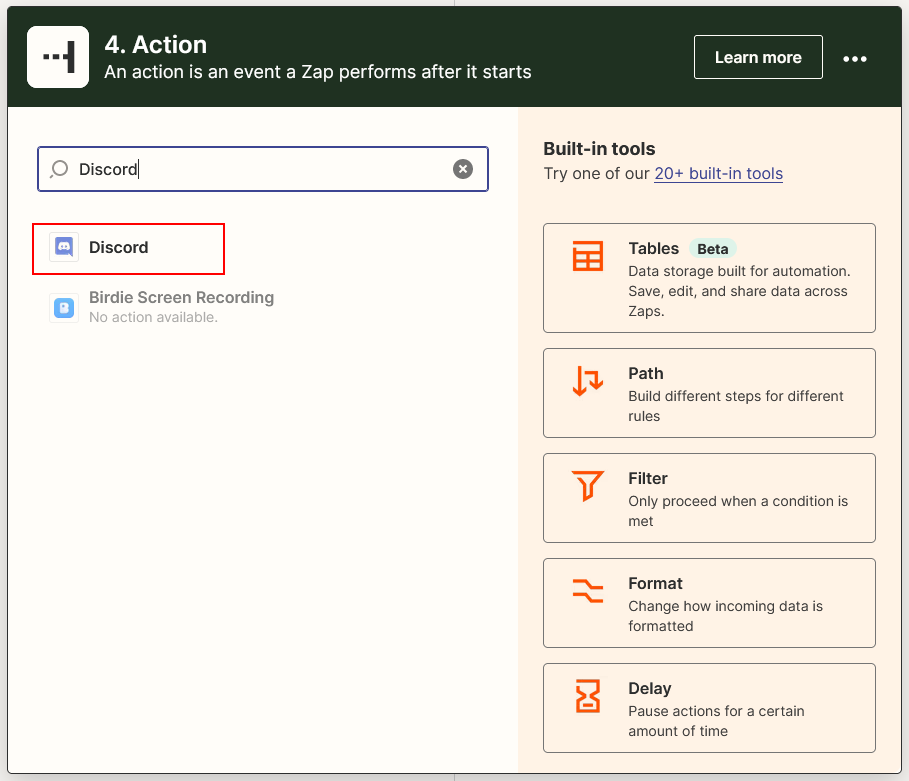
1. Click **+**, click or search for **Discord**

   <figure><img src="https://823733684-files.gitbook.io/~/files/v0/b/gitbook-x-prod.appspot.com/o/spaces%2F00tYLwhz5RyR7fJEhrWy%2Fuploads%2Fgit-blob-47667132ba89ef3de0529d584373cb4f90292a05%2F20.png?alt=media" alt="" width="563"><figcaption></figcaption></figure>
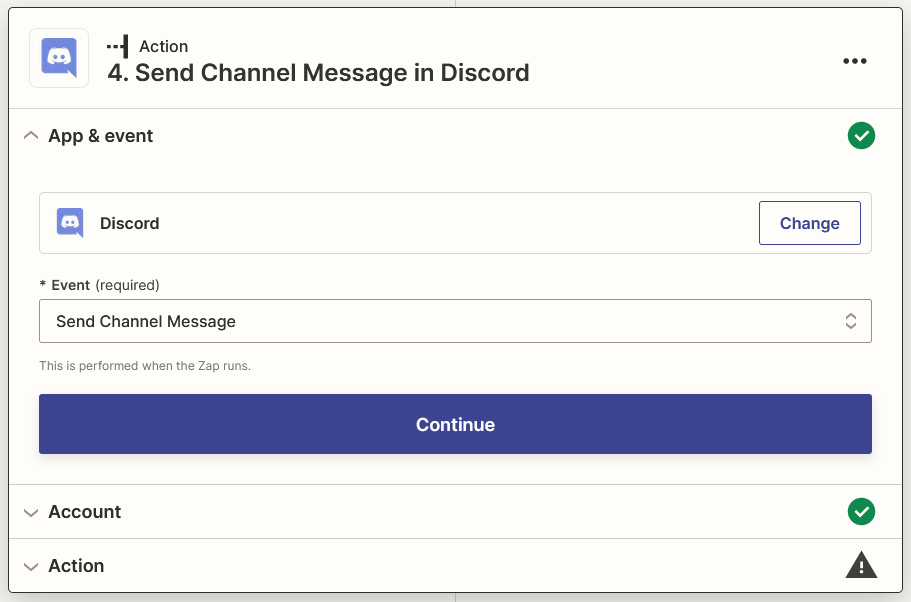
2. Select **Send Channel Message** as Event, then click **Continue**

   <figure><img src="https://823733684-files.gitbook.io/~/files/v0/b/gitbook-x-prod.appspot.com/o/spaces%2F00tYLwhz5RyR7fJEhrWy%2Fuploads%2Fgit-blob-b0a1c0d9d9b885e8122424d2f1e715d6518fb430%2F21.png?alt=media" alt="" width="563"><figcaption></figcaption></figure>
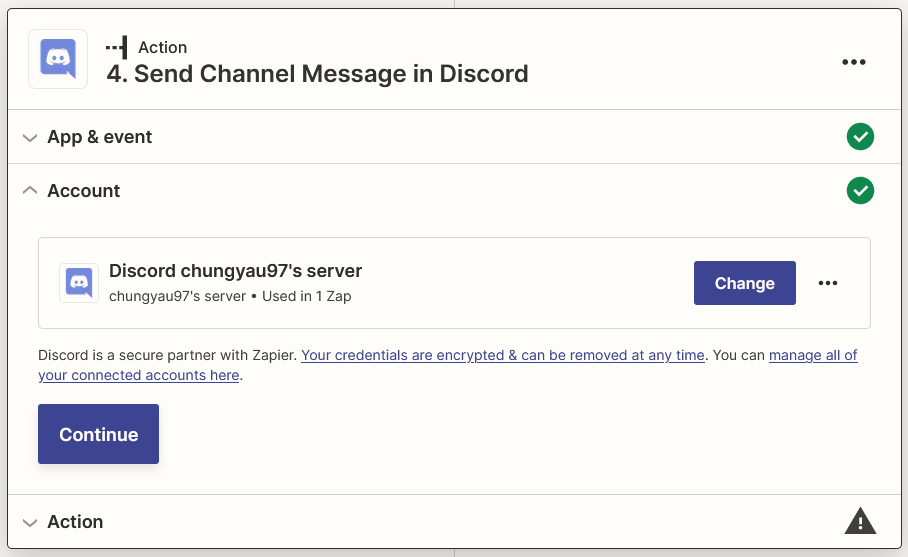
3. Select the Discord's account that you signed in, then click **Continue**

   <figure><img src="https://823733684-files.gitbook.io/~/files/v0/b/gitbook-x-prod.appspot.com/o/spaces%2F00tYLwhz5RyR7fJEhrWy%2Fuploads%2Fgit-blob-bd8e8e34a1a0e773fdd522d053b186ab2f53a984%2F22.png?alt=media" alt="" width="563"><figcaption></figcaption></figure>
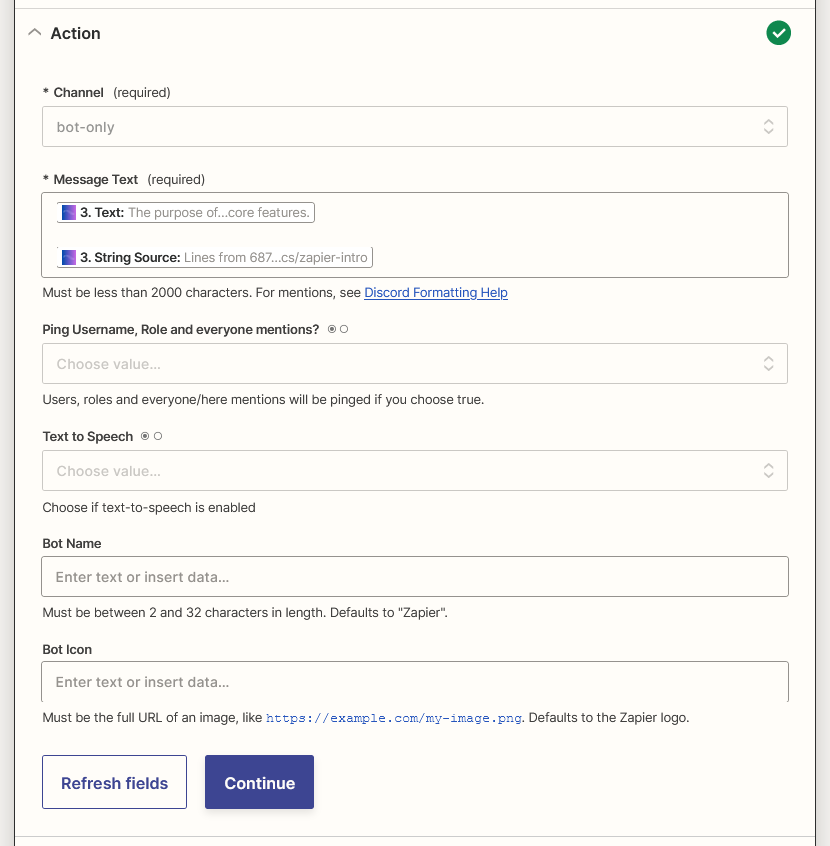
4. Select your prefered Channel for channel and select **Text** and **String Source** (if available) from FlowiseAI for Message Text, then click **Continue**

   <figure><img src="https://823733684-files.gitbook.io/~/files/v0/b/gitbook-x-prod.appspot.com/o/spaces%2F00tYLwhz5RyR7fJEhrWy%2Fuploads%2Fgit-blob-a346793040f4c8726391556e746a3728c8eac364%2F23.png?alt=media" alt="" width="563"><figcaption></figcaption></figure>
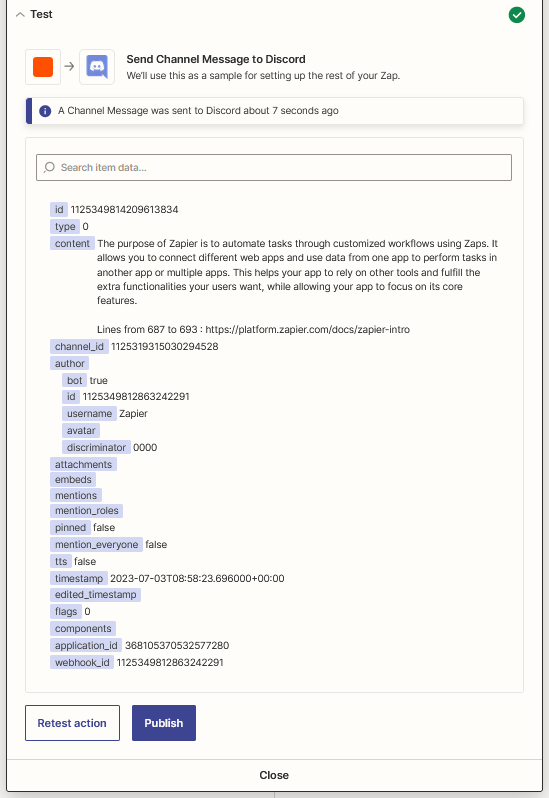
5. Click **Test action**

   <figure><img src="https://823733684-files.gitbook.io/~/files/v0/b/gitbook-x-prod.appspot.com/o/spaces%2F00tYLwhz5RyR7fJEhrWy%2Fuploads%2Fgit-blob-c356925ca873b0dc39c38bdf53e3b0ba73cd72e8%2F24.png?alt=media" alt=""><figcaption></figcaption></figure>
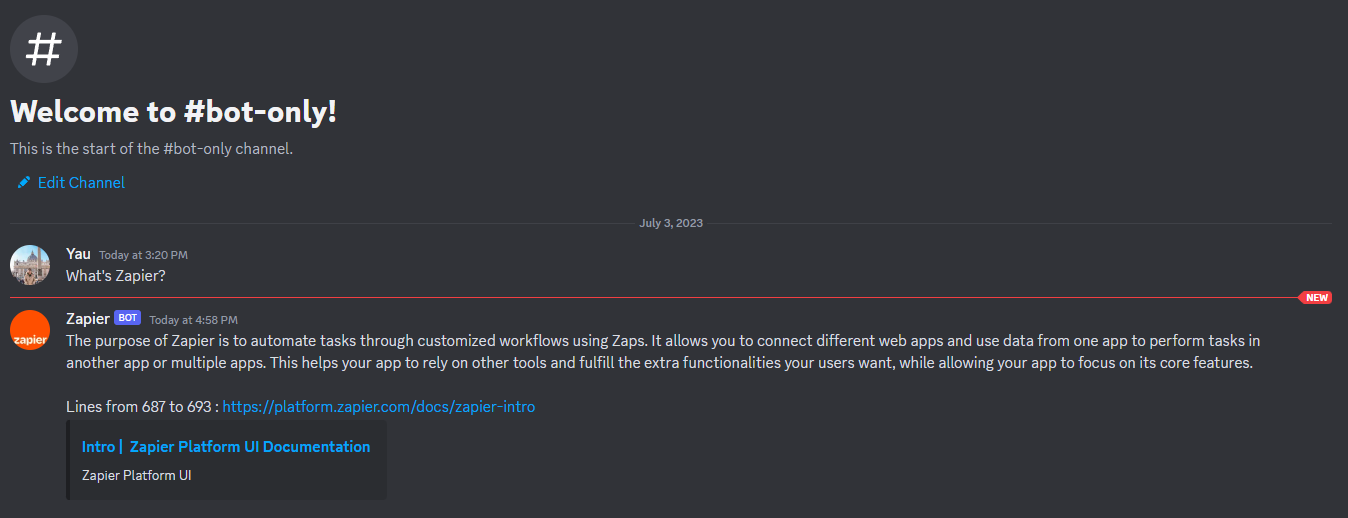
6. Voila [🎉](https://emojipedia.org/party-popper/) you should see the message arrived in your Discord Channel

   <figure><img src="https://823733684-files.gitbook.io/~/files/v0/b/gitbook-x-prod.appspot.com/o/spaces%2F00tYLwhz5RyR7fJEhrWy%2Fuploads%2Fgit-blob-76527a91194e645bf927a44c4ddaf5e9997a74c8%2F25.png?alt=media" alt=""><figcaption></figcaption></figure>
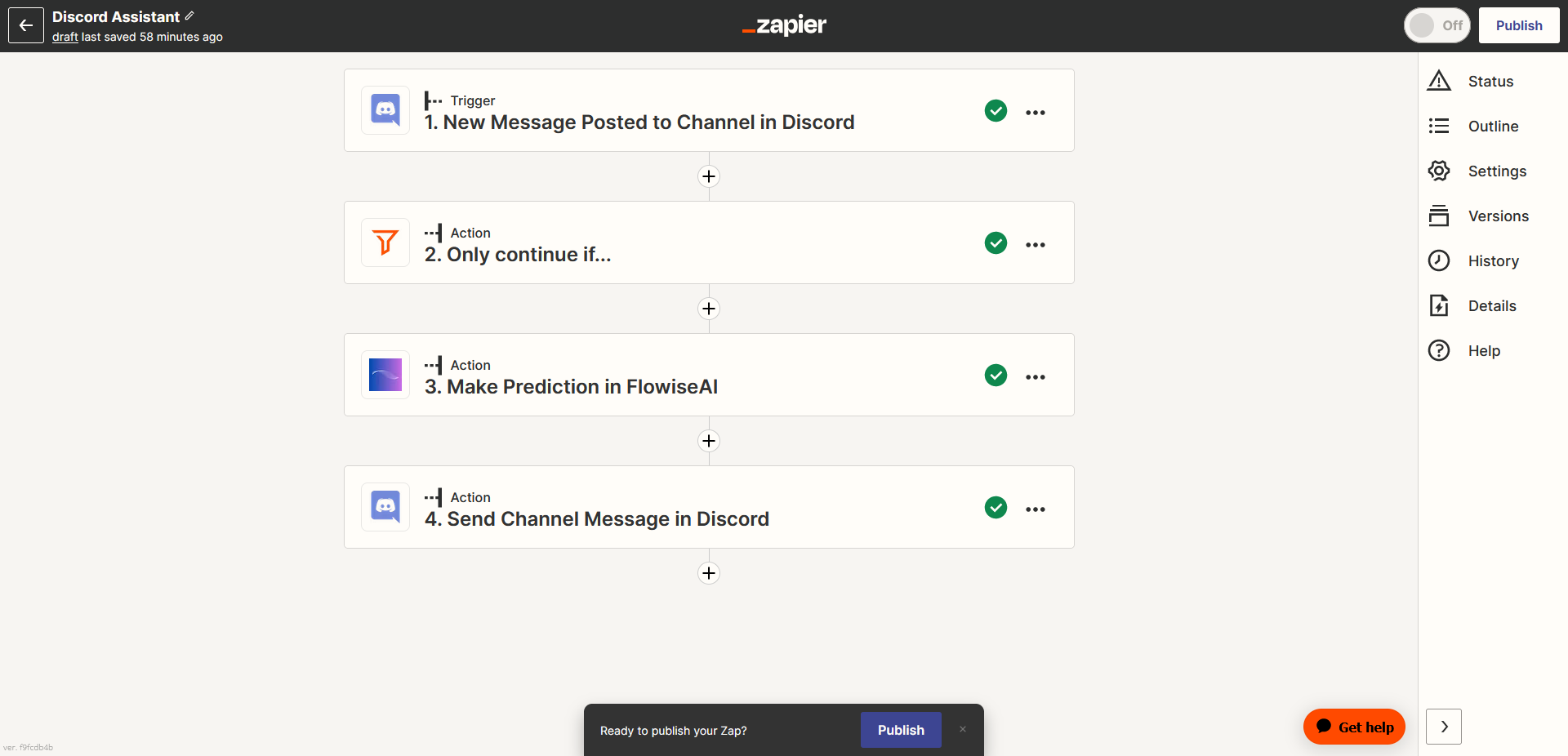
7. Lastly, rename your Zap and publish it
   <figure><img src="https://823733684-files.gitbook.io/~/files/v0/b/gitbook-x-prod.appspot.com/o/spaces%2F00tYLwhz5RyR7fJEhrWy%2Fuploads%2Fgit-blob-74a4c55bcafca7f62c512ff3a52cd784e71acc3c%2F26.png?alt=media" alt=""><figcaption></figcaption></figure>


---

# Agent Instructions
This documentation is published with GitBook. GitBook is the documentation platform designed so that both humans and AI agents can read, navigate, and reason over technical content effectively. Learn more at gitbook.com.

## Querying This Documentation
If you need additional information that is not directly available in this page, you can query the documentation by asking a question.

Perform an HTTP GET request on the following URL with the `ask` and `goal` query parameters:

```
GET https://docs.flowiseai.com/integrations/3rd-party-platform-integration/zapier-zaps.md?ask=<question>&goal=<user_goal>
```

`ask` is the immediate question: it should be specific, self-contained, and written in natural language.
`goal` is what the user is ultimately trying to achieve, the reason they need the answer. Sharing it helps GitBook give you a better, more relevant answer. A goal is most helpful when it describes the outcome the user wants rather than restating the question. For example, with `ask=how do I create an API token`, a goal like `automate deployments from our CI pipeline` lets GitBook tailor the answer to that use case.

The response will contain a direct answer to the question and relevant excerpts and sources from the documentation.

Use this mechanism when the answer is not explicitly present in the current page, you need clarification or additional context, or you want to retrieve related documentation sections.